Tour the Interface
BillTracker uses a dark, compact interface designed for recurring monthly work. The production instance supports both local login and Authentik OIDC.
The screenshots on this page were captured on June 7, 2026 from the
deployed v0.37.0 application at http://192.168.1.11:3031/. They render
the default dark theme that matches the docs site.
Live Login
The login screen shows the active application version and the authentication methods enabled by the administrator:
- Continue with authentik starts the OIDC redirect flow.
- Username and Password use BillTracker's local account store.
- About and Release Notes remain available without signing in.
After Sign-In
Regular users land on Tracker. The current interface groups routine work into a Tracker menu and keeps Calendar and Analytics visible as top-level navigation. The user menu contains Profile, Settings, Data, About, and logout.
| Surface | Main question it answers |
|---|---|
| Tracker | What is due this month, and what still needs attention? |
| Summary | How much money is available for the current period? |
| Calendar | When are bills due and when were payments recorded? |
| Bills | What recurring obligations should appear each month? |
| Subscriptions | Which recurring charges are tracked or newly suggested? |
| Snowball | Which debt should receive the next extra payment? |
| Data | How do transactions enter, match, and leave the system? |
| Analytics | How has spending changed over time? |
| Health | Which bill records need cleanup or missing fields? |
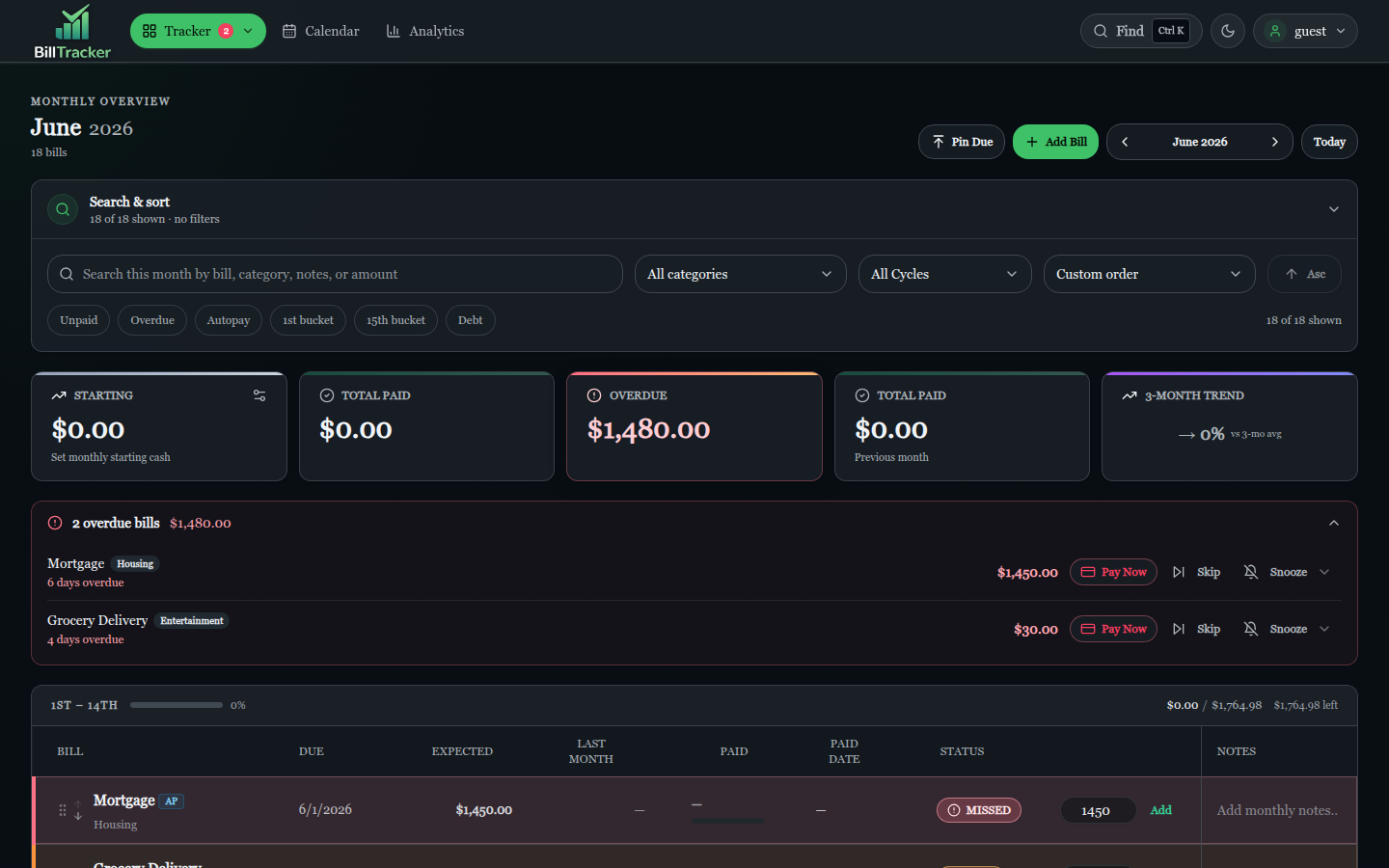
Tracker
The Tracker is the home view after sign-in. It groups bills by lifecycle status for the current month, shows expected and paid amounts, and exposes quick actions to record a payment, skip a bill, or open the full bill detail.
Bills
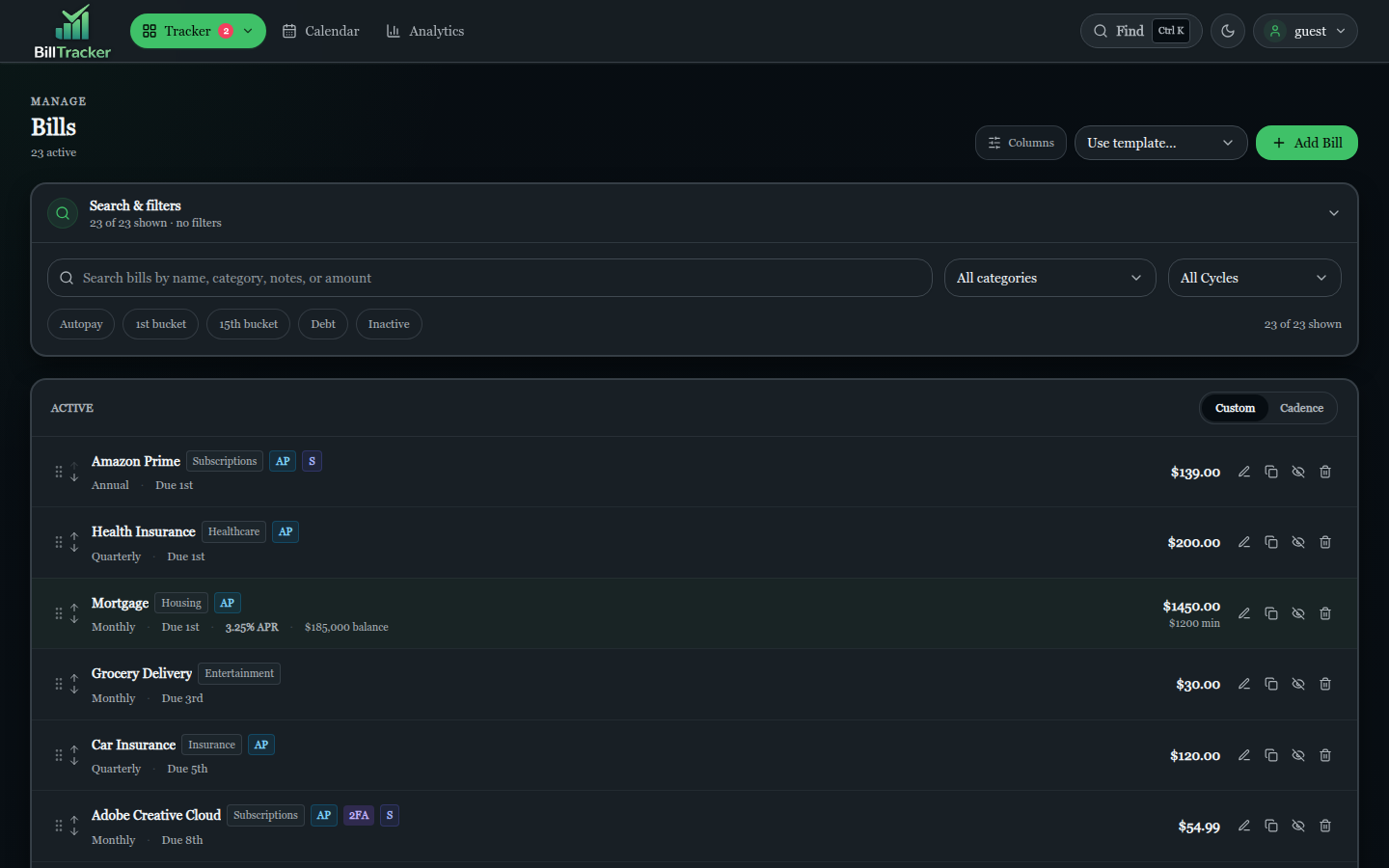
Bills is the master list of recurring obligations. Each row carries the autopay trust indicator, the merchant match key used by SimpleFIN sync, and the cycle that controls when the bill is expected.
Subscriptions
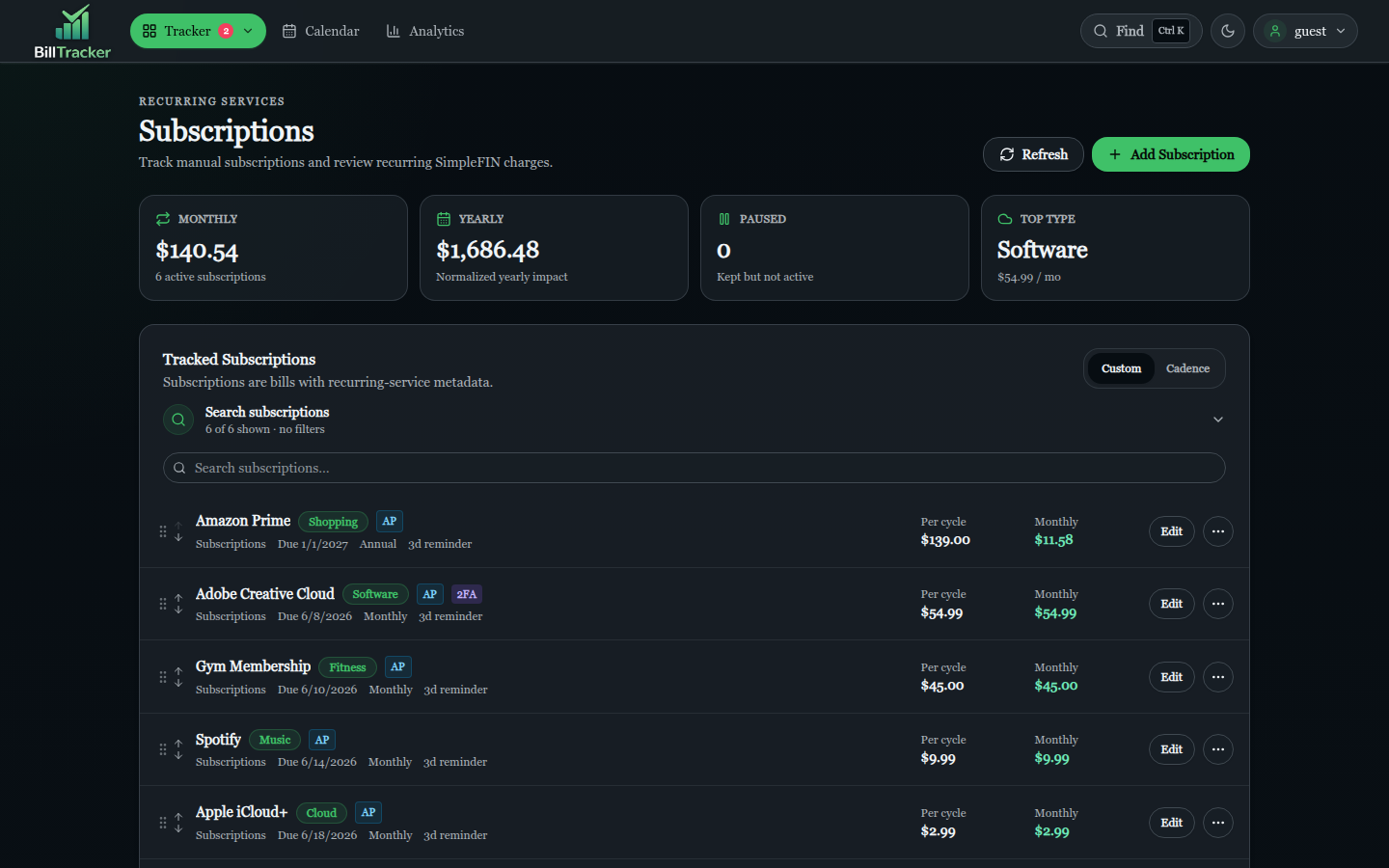
The Subscriptions screen splits the catalog into tracked (already a bill) and suggested (recurring merchants observed in your transactions that have not yet been added).
Calendar
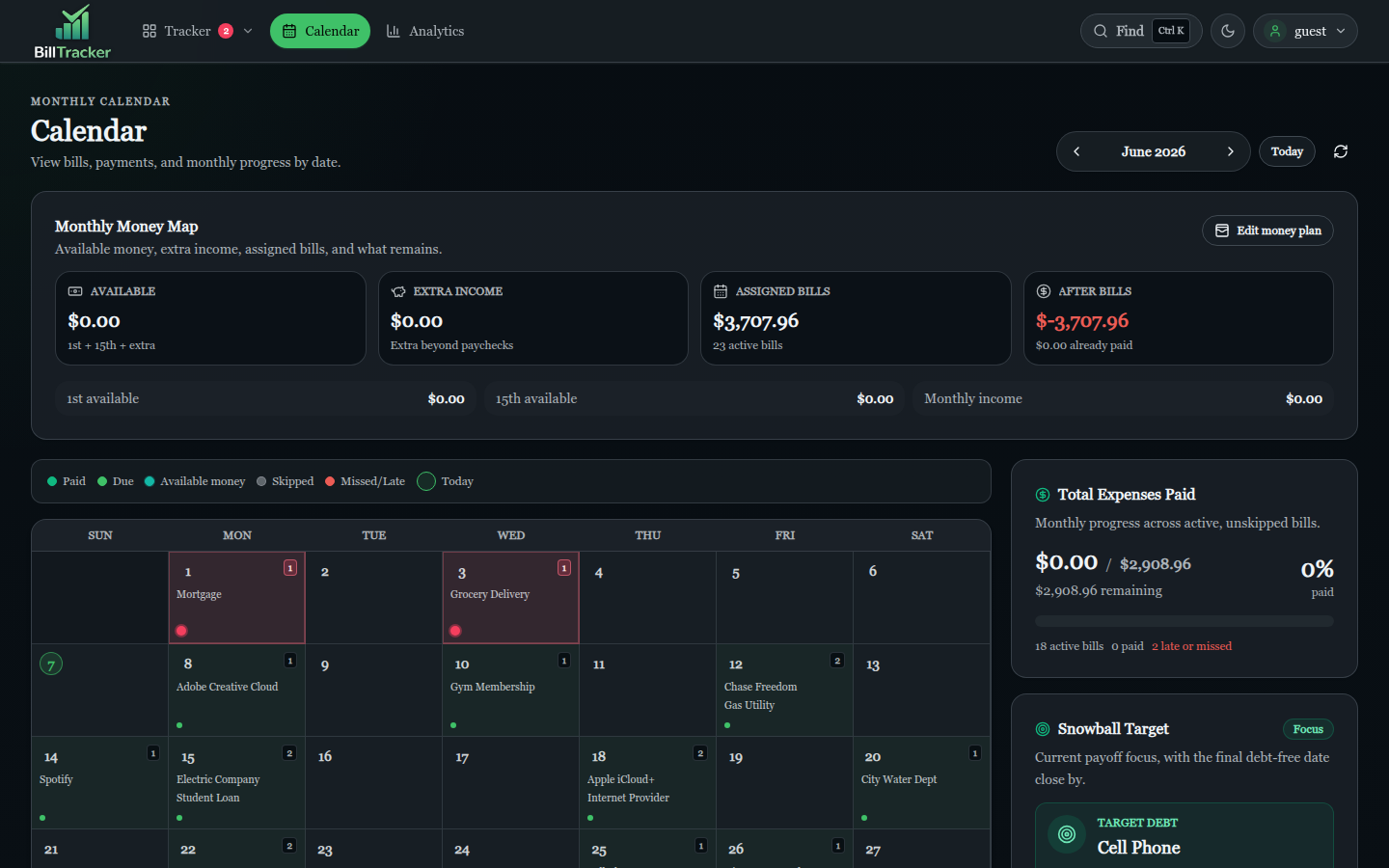
The Calendar shows due dates and recorded payments month-by-month, with drill-down into any single day.
Analytics
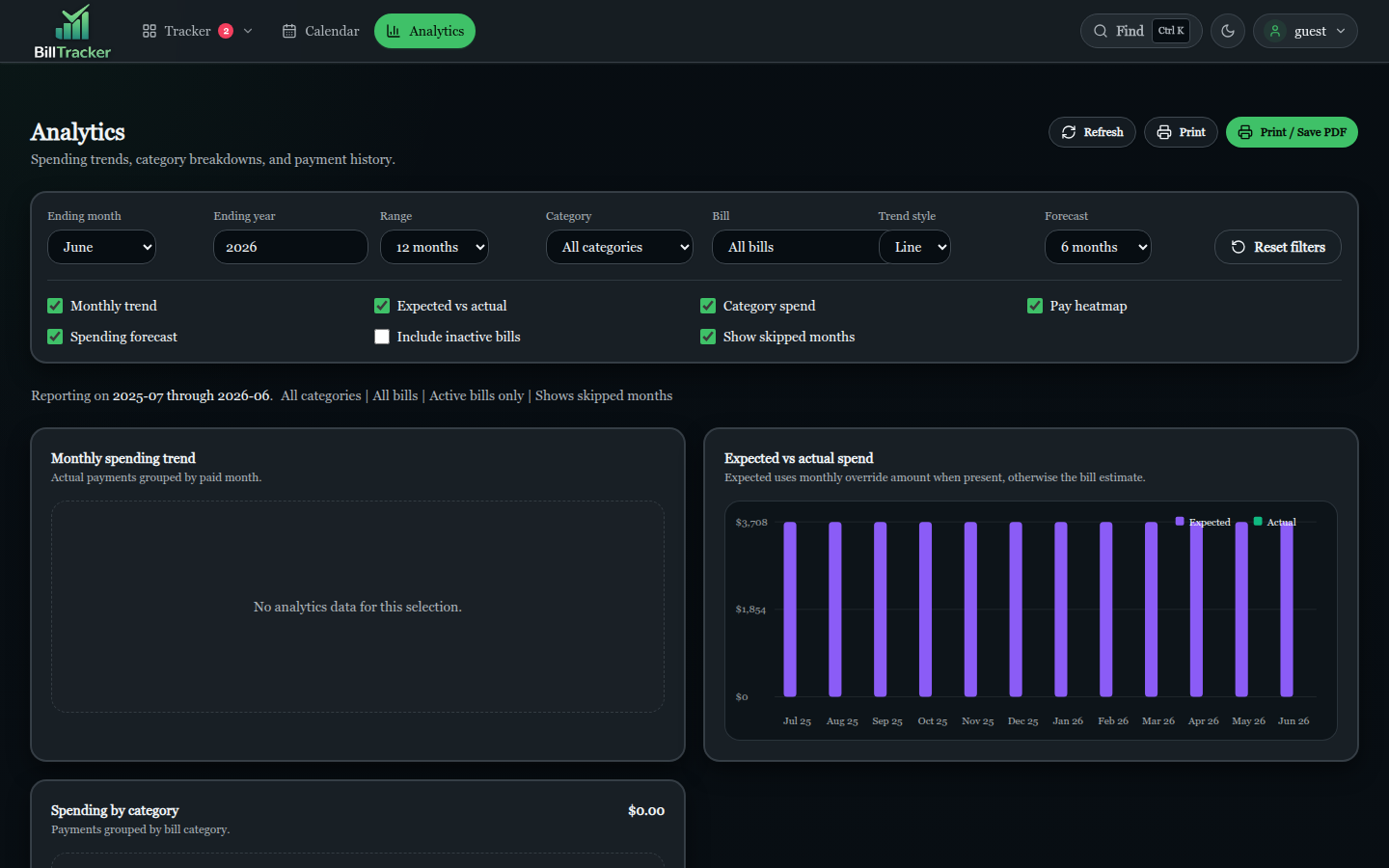
Analytics gives trend, category, and merchant breakdowns of paid bills and bank-sourced transactions across the periods you choose.
Snowball
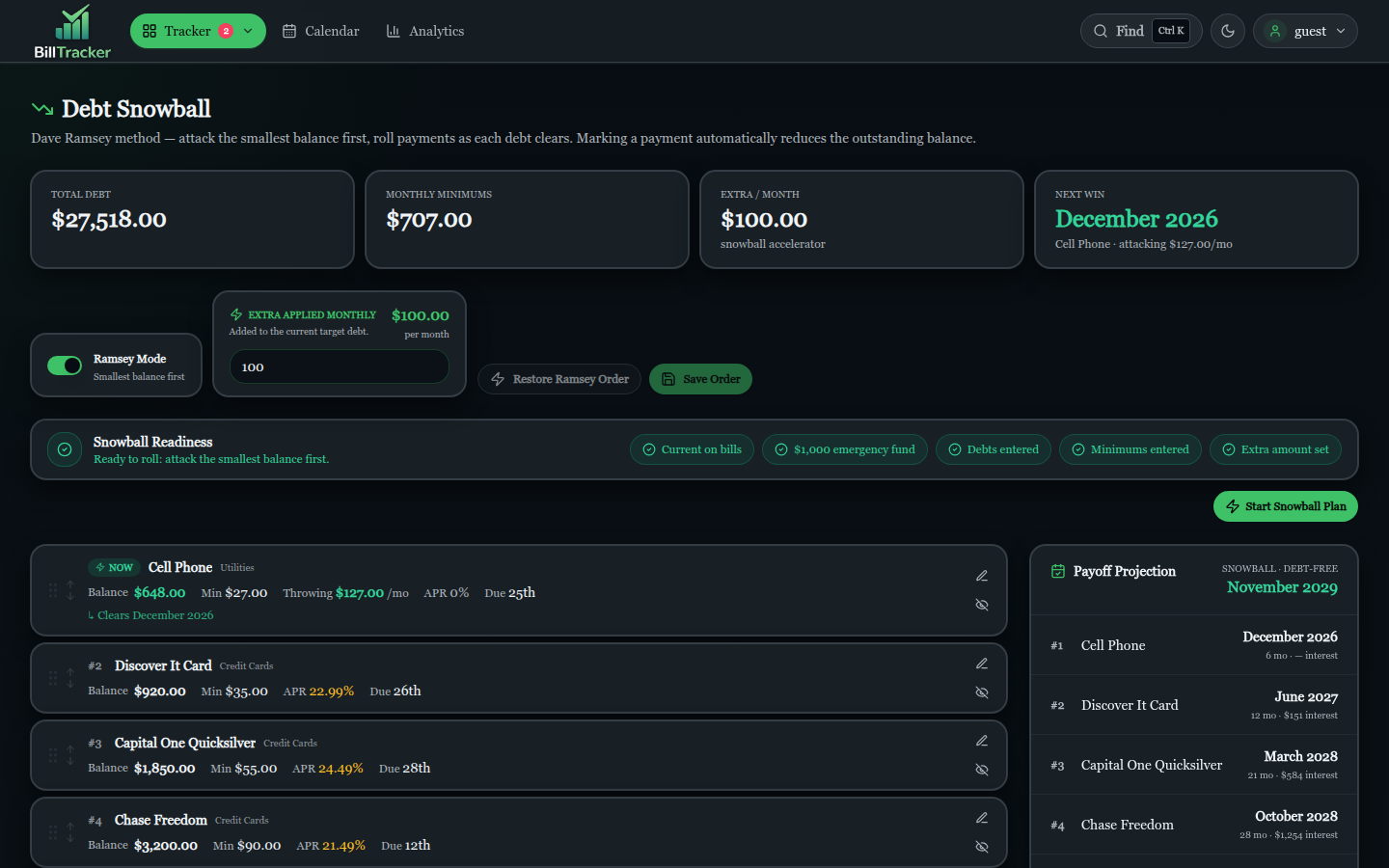
Snowball compares debt payoff plans side by side. Adjust the extra-payment slider to see how each plan changes total interest and the date your last debt clears.
Settings
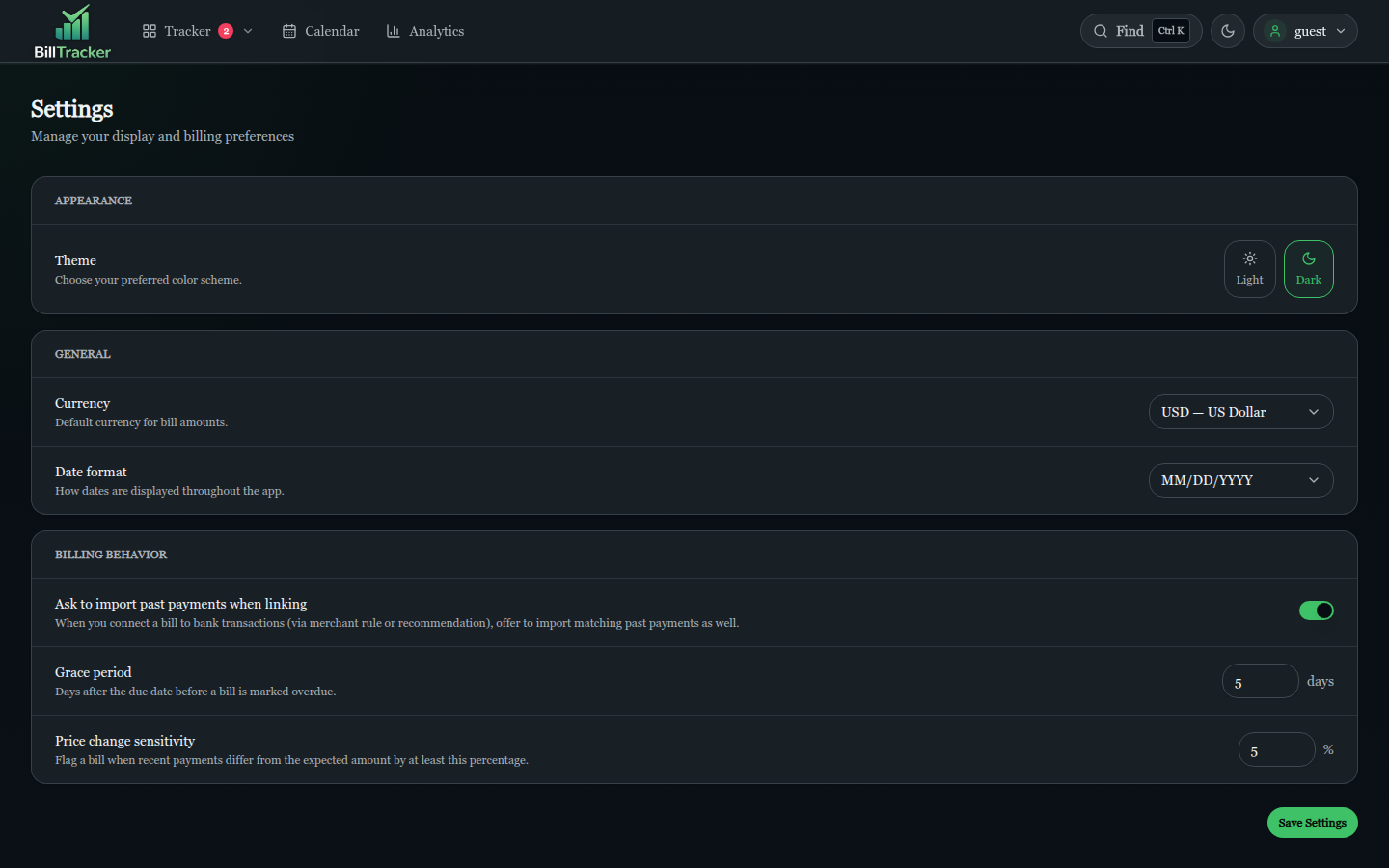
The Settings screen holds per-user preferences — appearance, theme, default landing page, session controls, and personal data export. Administrator-only surfaces (Users, Auth Methods, Backups, Notifications) live behind the role check and are not captured in this tour.
Screenshot Privacy
This documentation publishes live captures from a dedicated guest instance populated with synthetic records. Authenticated production screens may contain bill names, payment amounts, account details, transaction descriptions, usernames, or backup metadata.
When adding screenshots:
- Prefer a dedicated demo user populated with synthetic records.
- Capture the currently deployed version.
- Review every visible field before publishing.
- Include a capture date and application version in the caption.
- Remove stale captures when navigation or workflows change materially.
Note
The img/ directory at the repository root contains older authenticated
screenshots used during development. They are not published here
because their navigation predates the current interface and their
sample content should not be mistaken for a production walkthrough.
Next steps
- Start the app and follow along with Plan a Month in the Tracker.
- Install the app if you have not yet: Install with Docker.
- Read the security model if you are evaluating the app: Security.